Introduction
Managing customer relationships, tracking sales opportunities, and following up with potential clients requires an organised system. Zoho Bigin helps businesses manage these activities through a simple, pipeline-focused Customer Relationship Management (CRM) platform.
If you already use Bigin, accessing your account is the first step to managing your business activities and keeping customer information organised.
Whether you are a new user or an existing customer, this guide explains how to complete your Zoho Bigin login, access your account on different devices, reset a forgotten password, and resolve common sign-in issues.
How to Log In to Zoho Bigin
Accessing your Zoho Bigin account is straightforward. Follow these steps:
- Open your preferred web browser.
- Visit the official Zoho Bigin website.
- Click on the Sign In option.
- Enter your registered email address and password.
- Complete any additional security verification requested.
- Click Sign In to access your account.
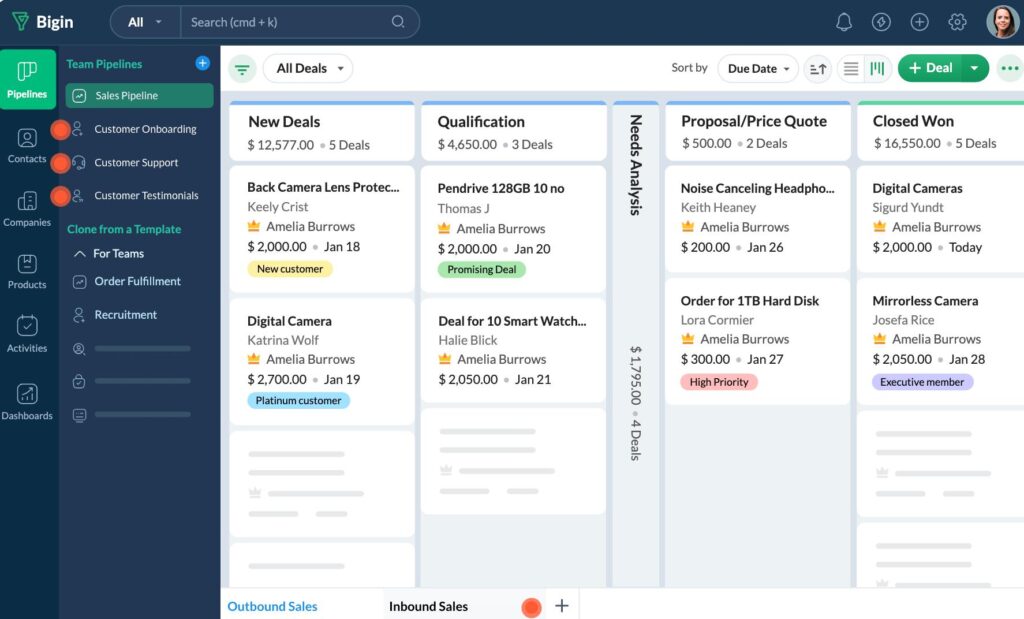
Once successfully logged in, you can access your Bigin workspace and manage your contacts, companies, sales pipelines, deals, and business activities.
Important: Use the Zoho account associated with your Bigin organisation. If your organisation uses a different Zoho data centre, you may need to sign in through the appropriate regional account domain.
How to Access Zoho Bigin on Mobile
You do not have to be at your desk to manage customer relationships. Zoho Bigin provides mobile applications for Android and iOS devices, allowing users to access important CRM information while on the move.
To log in using your mobile device:
- Download the Bigin by Zoho CRM application from the Google Play Store or Apple App Store.
- Open the application.
- Tap Sign In.
- Enter your registered email address and password.
- Tap Sign In to access your account.
You can also use supported alternative sign-in methods, including email OTP, depending on the available options.
The mobile application allows you to manage contacts, review deals, create tasks, record calls, and stay updated on business activities.
updated on business activities.
How to Reset Your Zoho Bigin Login Password
Forgotten passwords can prevent you from accessing important business information. Fortunately, you can recover access through Zoho’s password recovery process.
Follow these steps:
- Visit the Zoho Bigin sign-in page.
- Enter your registered email address.
- Select Forgot Password.
- Complete the requested CAPTCHA verification.
- Follow the instructions sent to your registered email address.
- Verify your identity using the OTP or password-reset link provided.
- Create and confirm your new password.
- Return to the login page and sign in using your updated credentials.
Ensure you use a strong password that is difficult to guess. Avoid sharing your login details with other people.
Common Zoho Bigin Login Problems and How to Fix Them
Sometimes, users experience difficulties accessing their accounts. Below are common login problems and practical ways to resolve them.
1. Incorrect Email Address or Password
If your login details are rejected, confirm that you are using the email address associated with your Bigin account.
Check for spelling errors, unnecessary spaces, and incorrect password entries. If you cannot remember your password, use the password recovery option.
2. Account Verification Issues
Zoho may request additional verification before granting access to your account.
Check your registered email address or phone number for the verification code. If you have enabled multi-factor authentication, follow the additional security instructions.
3. Unable to Access Your Bigin Account
If you cannot access your account even after entering the correct credentials:
- Check your internet connection.
- Refresh the sign-in page.
- Clear your browser cache and cookies.
- Try another supported browser.
- Confirm that you are using the correct regional Zoho sign-in domain.
- Check the Zoho service status page for possible service interruptions.
If the problem continues, contact Zoho Bigin support or your organisation’s administrator.
4. Account Access Has Not Been Granted
If you are a new employee or team member, you may need an invitation from your organisation’s Bigin administrator before accessing the company’s workspace.
Ask your administrator to confirm that you have been added as a user and have accepted the invitation.
5. Multi-Factor Authentication Problems
If you cannot complete your additional security verification, use an available backup verification method or contact your organisation’s administrator for assistance.
Do not share your verification codes or passwords with unauthorised individuals.
What Can You Do After Logging In to Zoho Bigin?
Once you successfully access your account, you can use Bigin’s CRM features to organise and manage your customer relationships.
Some of the activities you can perform include:
- Manage contacts: Store and organise customer and prospect information in one place.
- Track sales pipelines: Monitor opportunities as they progress through different stages of your sales process.
- Manage deals: Keep track of potential sales, deal values, and progress.
- Schedule activities: Create tasks, events, and reminders to stay on top of important follow-ups.
- Collaborate with your team: Give authorised team members access to relevant customer information.
- Monitor customer interactions: Keep records of important conversations and business activities.
These features help businesses improve visibility across their sales processes and maintain more organised customer relationships.
Frequently Asked Questions About Zoho Bigin Login
1. How do I log in to my Zoho Bigin account?
Visit www.bigin.com, click Sign In, and enter your registered Zoho account credentials. Complete any additional verification required to access your workspace.
2. Can I log in to Zoho Bigin using my Google account?
Zoho supports alternative sign-in methods, including Google, Microsoft, Apple, and LinkedIn, depending on your account and data centre. Select an available option on the sign-in page.
3. Can I use Zoho Bigin on my phone?
Yes. Zoho Bigin has mobile applications for Android and iOS devices. Download the application, sign in using your registered account, and access your CRM information on the go.
4. What should I do if I forget my Zoho Bigin password?
Select Forgot Password on the sign-in page and follow the password recovery instructions sent to your registered email address.
5. Is Zoho Bigin free to use?
Yes. Zoho Bigin offers a free plan for core CRM features, alongside paid plans with additional capabilities. You can review the available plans and features on the official Bigin website.
6. Why can’t I access my company’s Bigin account?
You may not have been added to the organisation, may have an incorrect login email, or may need to accept an invitation. Contact your Bigin administrator to confirm your access permissions.
7. Can I use one Zoho login for multiple Bigin organisations?
Yes. Users who belong to multiple Bigin organisations can switch between them using the organisation-switching option in their account, subject to their access permissions.
Final Thoughts
Accessing your Zoho Bigin account should be a simple process. With the correct login credentials and a reliable internet connection, you can sign in through your browser or mobile application and manage your customer relationships more efficiently.
If you experience login difficulties, the password recovery process, account verification options, and troubleshooting steps outlined in this guide can help you regain access.
For businesses looking to improve their sales processes, Zoho Bigin provides a practical way to organise customer information, monitor deals, and manage sales pipelines.
Need help getting started with Zoho Bigin or making the most of its CRM features?
At Excellium Business Limited, we help businesses discover and implement software solutions that support better operations, customer management, and business growth.
Contact Excellium to learn more about Zoho solutions and how they can support your business.
Build smarter. Grow faster.
Visit Excellium to explore our business software solutions and services.